Want to build your own 24/7 FAQ knowledge base?
LibraryH3lp subscriptions
include unlimited independent internal or public-facing
knowledge bases.
Search the LibraryH3lp Knowledge Base
Why did I get disconnected in the webclient for staffing?
8847 views | Last updated on Oct 16, 2026 disconnected webclient
Web browsers
It never hurts to clear cache and specifically LibraryH3lp cookies.
Web browsers prioritize active tabs to improve performance, sometimes limiting resources such as memory and network access for inactive tabs. While harmless for most websites, this disrupts the webclient's real-time connection, which is essential for reliable chatting.
Chrome
New Chrome behavior, Fall 2026: Enabling site notifications for the webclient has become essential and is the best way to let Chrome know that you want to know about webclient activity even if its tab is not in front. Note that enabling sound is insufficient. You specifically need to enable notifications, even if you don't care to actually receive them.
Enabling site notifications

When you sign into the webclient, look near the top of the screen for a prompt to enable notifications. This should be offered if notifications are not already enabled. Use the button to enable notifications.
If you do not see the banner and are having trouble staying connected:
- Look near the URL bar and right-click the "view site information" icon, which looks like two slider controls.
- Slide the Notifications option to the right, or use the Reset permissions button.
- Chrome may prompt you for a reload.
- If you'd like to also actually receive these notifications, also head into your LibraryH3lp webclient preferences and check the box for Show Visual Notifications.

This setting is associated with an instance of Chrome, not the LibraryH3lp user, and so users that staff chat from multiple computers need to have notifications enabled in each computer's instance of Chrome.
Still having trouble in Chrome? Head to Settings > Performance > General > Always keep these sites active. You can add your LibraryH3lp domain as an exception so that it will not be fully unloaded automatically. The domain to add is libraryh3lp.com (main service region); ca.libraryh3lp.com (Canada service region); eu.libraryh3lp.com (Europe service region); or sg.libraryh3lp.com (Asia/Pacific service region). Note that this on its own will not help unless you already have notifications enabled.
Edge
1) Ensure that notifications are enabled.
- Look near the URL and right-click the "view site information" icon, which looks like a padlock.
- If you do not see Notifications with a slider to the right for enabled, head into Site Settings.
- Site Settings will open in a new tab. Look for Notifications and change to "Allow."
- Verify that it worked by viewing the site information under the padlock icon near the URL.
- Edge may prompt you for a reload.
- If you'd like to receive these notifications, also head into your LibraryH3lp webclient preferences and check the box for Show Visual Notifications.
2) Head to Settings > System and performance > Optimize Performance > Never put these sites to sleep. You can add your LibraryH3lp domain so that it will not go to sleep. The domain to add is libraryh3lp.com (main service region); ca.libraryh3lp.com (Canada service region); eu.libraryh3lp.com (Europe service region); or sg.libraryh3lp.com (Asia/Pacific service region).
Firefox
1) Enable notifications
Near the URL bar check to see if libraryh3lp.com already has "Send notifications" permissions. It will look like this:

If "Send notifications" is not already allowed, sign into the webclient, and then head to your personal Preferences. Enable "show visual notifications." Firefox will prompt you to add notifications permissions.
2) There does not seem to be a way to add specific domains to an exception list. However, you can disable Firefox's Tab Unloading feature entirely through the about:config page. More info here.
Safari
Honestly, it's not documented, but we believe that Safari also has behavior that can cause disconnects when it tries to preserve resources for active tabs, and the LibraryH3lp webclient is not in view or on top. We do not know of any settings to help. For best results when staffing in Safari, keep the webclient's tab on top or detached and at least partially in view at all times.
If the above settings do not do the trick, you might try keeping a small portion of the webclient always in view, even when other windows/tabs are on top. You can accomplish this by having the webclient in its own separate web browser window instead of just in a tab group (drag the webclient tab into its own separate window). Once it is in its own window, make sure to keep a tiny portion of it visible when other things are on top. Do not fully cover it up with other windows, and do not minimize it.
Is there a built-in timeout?
The webclient for staffing does not have any automatic time-outs other than the user-configurable auto-logout settings.
If auto-logout is not in play and you find that you are logged out of LibraryH3lp when you are idle or the LibraryH3lp tab in your browser is not active, skip down to the section covering "Web browsers" to adjust the behavior of inactive tabs specifically for the LibraryH3lp websites.
Real-time, constant connection required
The webclient maintains a constant connection with LibraryH3lp's servers to ensure that the user is connected and able to respond to chats. Most other websites are much more static and do not need this constant connectivity. The webclient uses WebSockets to exchange small amounts of data between the user's browser and our servers in a "ping/pong" pattern.
If the webclient cannot reach the LibraryH3lp server, it displays a warning, sets the user to "busy" so that they won't receive new chats, and automatically tries to reconnect. If it cannot reconnect within a couple of minutes, it alerts the user that they have been disconnected and need to log in again.
Other things to check:
- Using a mobile device (tablet, iPad, phone) to staff in the webclient. The device saves battery by throttling the network connection to web browser pages that are not active, so the user will get disconnected if the webclient is not on top, or becomes idle or locked. When using a mobile device, it is better to use an XMPP app.
- Computers going to sleep because of idle time. Because of browser sandboxing, this problem may manifest as the webclient appearing to be signed in when it really is not. The computer's idle process will not always communicate the closed state of the connection back to the browser. See sections below labeled "Power and Sleep Settings for PCs" and "...for Macs" for more info.
- Switching between networks while signed in. Example: taking a laptop out of its dock to switch from a wired to a wireless network, or changing from a wireless network to your personal hotspot. It is best to sign out and back in when changing networks.
Network infrastructure
Your organization probably has network devices between your computer and our servers. Sometimes these are configured in a way that will interfere with your ongoing webclient connection.
- Firewalls. These can be configured to timeout perceived inactive connections frequently, such as every 30 or 60 minutes. Even if your computer is in constant use, there may not be enough data to our LibraryH3lp servers flowing through the firewall to prevent an inactivity timeout of your LibraryH3lp connection. Have your IT networking staff make sure that your access is not blocked or disrupted. The webclient uses port 443 and websockets, as previously noted. If you happen to use an external XMPP client such as Pidgin or Adium, these use port 5222.
- Poor network conditions. Examples: overloaded local network or ISP, dropped packets, low connectivity over wireless, oversubscribed wireless networks, and upstream problems.
- Caching proxy servers* can interfere with webclient connections in a few ways. If a proxy server like this seems to be causing disconnects, please try increasing proxy read timeout and/or increasing the number of allowed connections to a site. Here are some of the ways they can interfere:
- They don't respect the long-running connections to our server, causing the disconnects.
- They cache responses, which interferes with the reconnection attempts.
- Depending on configuration, they may also limit the number of simultaneous connections to any particular host across the network. This may cause the problem to appear only once a particular critical mass of people is signed in and/or chatting all at once, as can happen when bringing a service up live, following a successful testing period with fewer numbers of simultaneous logins.
- *Note that we are NOT concerned with access-related proxy servers such as EZProxy. That is a different animal and does not impact chat. We are concerned with proxy servers used internally, often to boost performance on large networks.
Need more help?
If you've been over these things and need more assistance, or if you need connection logging details from our side, please email us at support@libraryh3lp.com.
Power and Sleep Settings for PCs
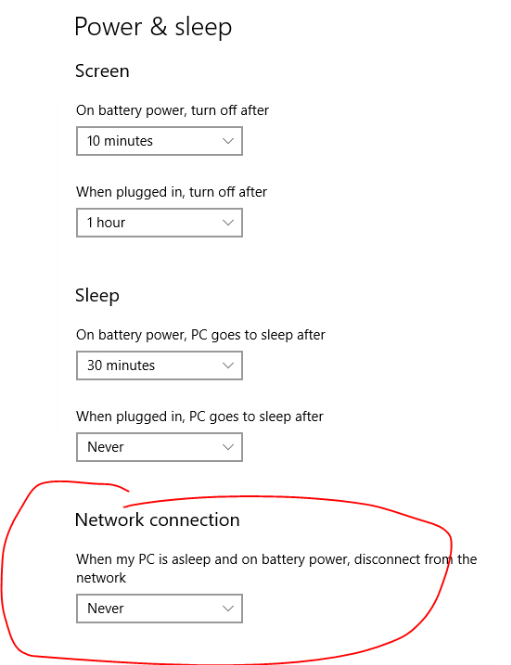
For Windows users, there are a couple of places to go looking for settings related to idle time and sleep/hibernate. One is in Power & Sleep -- this shows both a summary of when to sleep and hibernate (turn off) when on battery versus plugged in, AND on some computers, it also shows a setting related to what to do about the network when the PC is asleep and on battery:
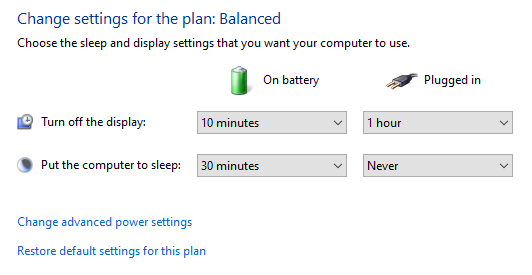
The other place is in Control Panel > Hardware and Sound > Power Options. Here you can set up power plans or change an existing power plan -- default is "Balanced". This mostly duplicates the above Power &: Sleep but has a different user interface and a way to fine-tune some things.
Power and Sleep Settings for Macs
The two main areas are the Energy Saver and Screensaver, both in System Preferences.
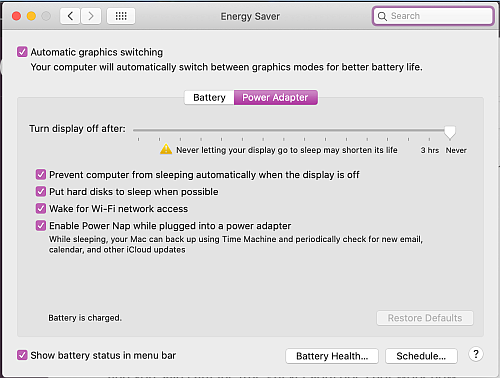
In Energy Saver, note that there are separate settings for when on battery power versus using a power adapter.
Make sure to have "Prevent computer from sleeping automatically when the display is off" checked. Also set "Turn display off after..." to Never.
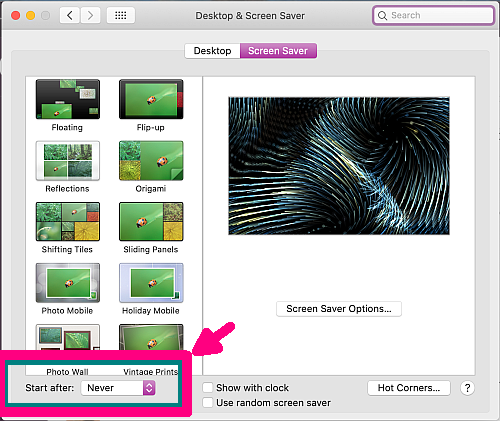
In Desktop and Screen Saver, set "Start after" to Never.
If the above proves insufficient, you might try the built-in Caffeinate tool in a terminal window; please read the man page for more information. Or, you can try installing a utility that prevents the Mac from sleeping, such as Caffeine.
Locally-installed clients are more robust
Despite all our efforts to make the webclient as reliable as possible, it will not work well for everyone. Locally-installed clients (those installed directly on a computer rather than only running through the web browser) will always be more robust than a browser-based client because they tie into your operating system directly whereas browser-based clients are sandboxed from the operating system by the browser. You may have to use one of these.
FAQ URL:
More Help
Search By Topic
Stay Connected
