Want to build your own 24/7 FAQ knowledge base?
LibraryH3lp subscriptions
include unlimited independent internal or public-facing
knowledge bases.
Search the LibraryH3lp Knowledge Base
What do I need to know about configuring Ticket email rules?
488 views | Last updated on Jun 08, 2026 tickets
Ticket email rules control how incoming email is handled by a ticket-enabled queue.
These rules apply only to email sent to your ticket queue. Outbound email, such as notification templates and guest communications, is configured separately.
Default Behavior
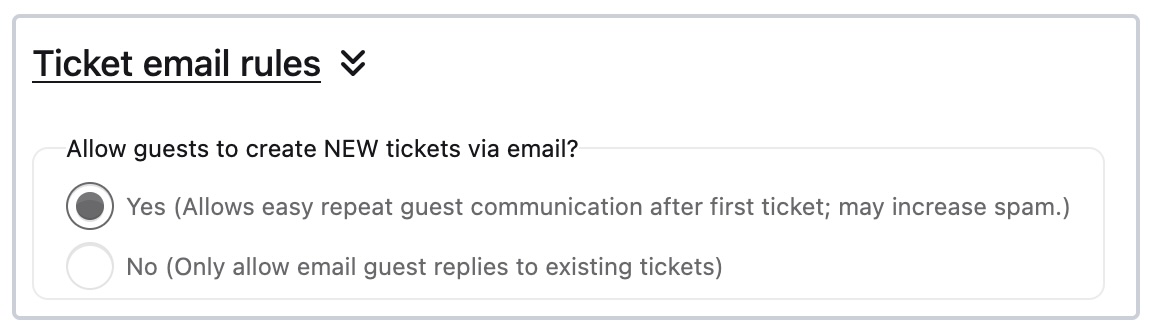
By default, ticket email rules are configured to allow:
- Guests to create new tickets by email.
- Staff to create new tickets by email.
- Guests and staff to update existing tickets by replying to email messages.
This setup provides the most flexibility and allows ticket conversations to continue naturally through email.
If spam becomes a concern, you can adjust the email rules to restrict how new tickets are created. But for most situations, you will not need to adjust your email rules beyond the recommended defaults.
Managing Email Rules
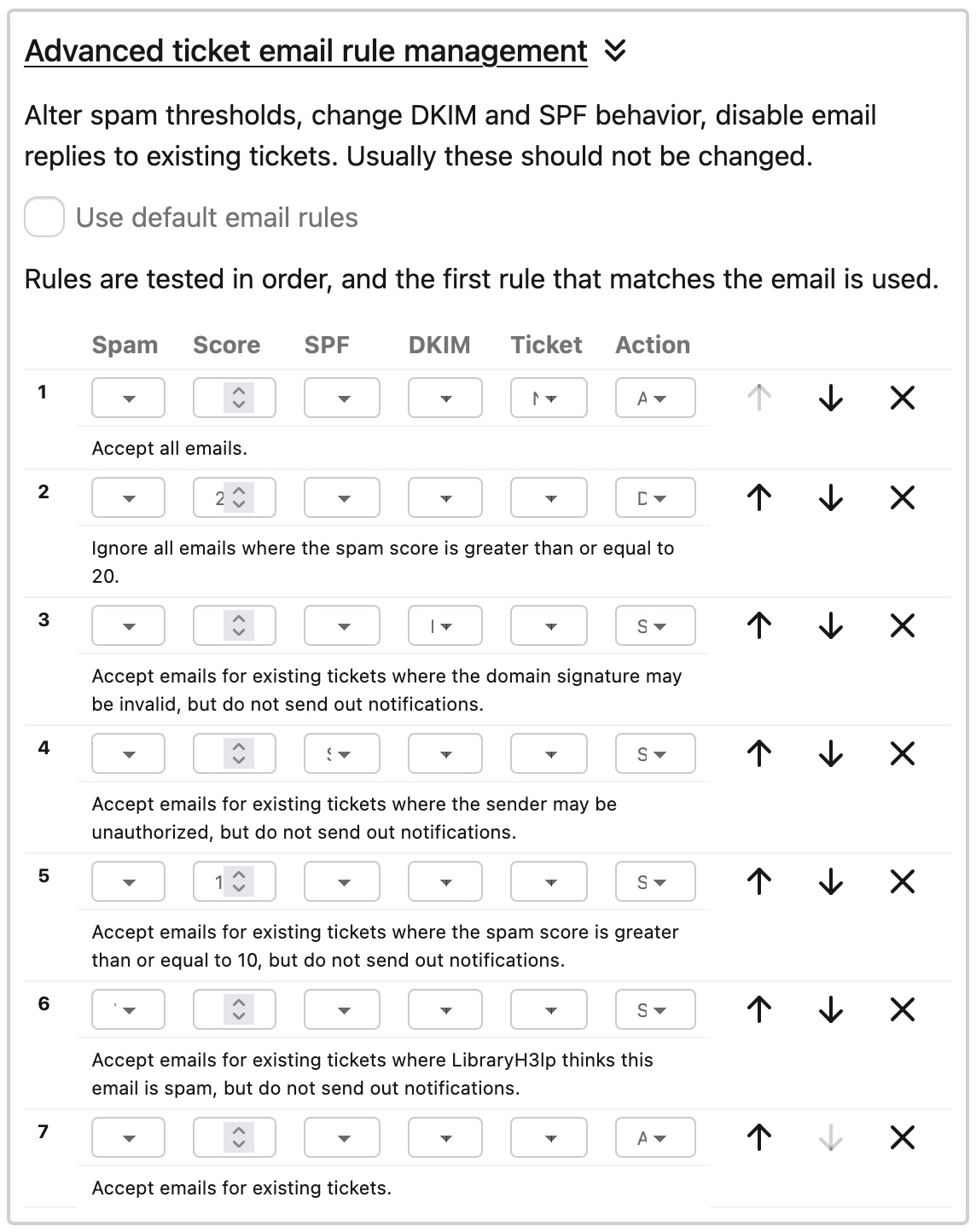
You'll see a set of rules that determine how incoming email is processed. Most of these rules are related to spam handling and can be left as-is unless you're certain a change needs to be made.
Rules are evaluated from top to bottom. Once a rule matches, the corresponding action is applied.
Use the arrow buttons to reorder rules and the X button to remove a rule.
Important: Remember to save your changes after modifying any email rules.
Rule 1: Accept new ticket emails
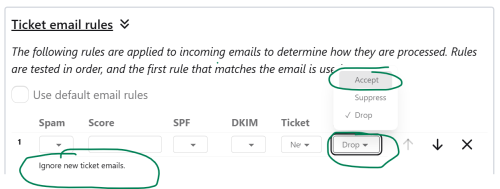
The first rule determines whether a brand-new email can create a new ticket.
When this rule is set to Accept, guests can create tickets simply by sending an email to the queue's email address. This is the default setting and is recommended for most organizations.
When this rule is set to Drop, new emails that are not associated with an existing ticket are ignored. In this configuration, new tickets can only be created by:
- Staff using the Tickets interface
- Staff sending email to the queue
- Guests submitting a ticket form
Setting the action to Drop can help reduce unwanted ticket creation and spam if this becomes an issue.
Rule 7: Accept emails for existing tickets
The final rule controls whether incoming email can update an existing ticket.
We strongly recommend leaving this rule enabled.
When enabled, guests and staff can continue a ticket conversation simply by replying to email messages.
For example, if a staff member emails a guest and the guest replies with additional information, the reply will be added to the existing ticket automatically.
If a reply is received for a closed ticket, the ticket will automatically be returned to In Progress status so that staff can review the new activity.
What about the other rules?
The remaining rules primarily help identify and filter unwanted email.
Most organizations should leave these rules unchanged unless they are experiencing spam issues or unexpected email delivery problems.
Some rules rely on email authentication technologies such as SPF and DKIM. If you need to modify these settings, you may want to consult your IT department, mail administrator, or LibraryH3lp Support.
Restoring the default rules
If you've modified the rules and want to start over, select Use Default Email Rules to restore the standard configuration.
You can also remove all existing rules. If no custom rules are present, the default rule set will be restored automatically.
FAQ URL:
More Help
Search By Topic
Stay Connected
