Want to build your own 24/7 FAQ knowledge base?
LibraryH3lp subscriptions
include unlimited independent internal or public-facing
knowledge bases.
Search the LibraryH3lp Knowledge Base
What are Email Notification Templates and how are they used?
574 views | Last updated on Aug 24, 2026 tickets
Email Notification Templates let you send customized email notifications to staff and guests when ticket activity occurs.
For example, you might notify staff when a new ticket is created, send a confirmation email when a guest submits a ticket, or alert a staff member when a ticket is assigned to them.
By default, ticket notifications are disabled. You can create as many notification templates as needed and customize both the email subject line and message content.
Creating Email Notification Templates
From the Ticket Module, navigate to Menu icon → Settings →Notification Templates and click Add new template.
The Email Notification Designer will open which allows you to choose a queue, an event, and a recipient for each notification. Events are the triggers for when notifications are emailed. Recipients are whom the notifications are sent to.

Queue
Select the desired queue where the notification should apply.
Event (When)
Choose the action that should trigger the notification.
Common events include:
- Ticket created
- Ticket assigned
- Ticket status changed
- Ticket closed
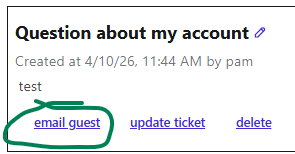
The sending an ad hoc email to the guest event is special. This event corresponds to the email guest action in the ticketing interface.
Note: The any change is made to the ticket event can generate a large number of notifications and should be used with care.
Recipient (To)
Choose who should receive the notification:
- Assignee (staff member to which the ticket is assigned)
- Staff (all staff who are operators on the queue)
- Guest
For example, you might create a notification that emails staff whenever a new ticket is created in your public-services queue.
Guests can also receive notifications for events such as ticket creation or ticket closure. Please be aware that, if your template includes ticket notes, those notes will be visible to the guest.
Reusing a Template
After you make your selections, an additional row will appear. This allows the same notification template to used for more than one queue, event, or recipient.
For example, you may want to send the same email content to a guest no matter the queue on which the ticket is submitted.
If you don't have any additional situations, you may disregard the additional unconfigured row.
Customizing Email Subjects and Content: the magic of variables
Templates use variables to automatically insert ticket information into emails. There are variables that will automatically provide the guest's name, the original question, etc... within the notification email. Variables are enclosed in two or three {{curly brackets}}.
For example, you might use the following subject line:
Ticket created: {{ticket_subject}} ({{guest_name}})
If guest John Doe submits a ticketed titled Help with my account, the notification email's subject would become:
Ticket created: Help with my account (John Doe)
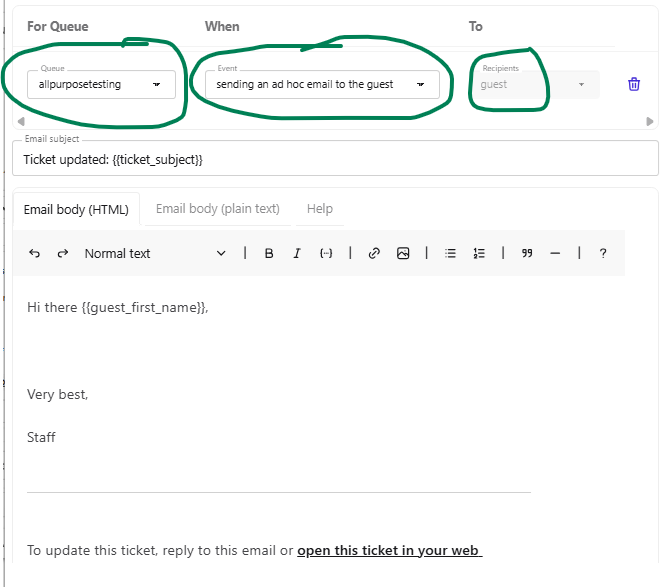
Here is an example of a simple ad hoc email template for when you communicate with the guest. Note that the template is set up to read like an ordinary email, without a lot of internal ticket variables displayed, aside from subject line and guest name. If preferred, you can use any of the the standard variables in this template too.
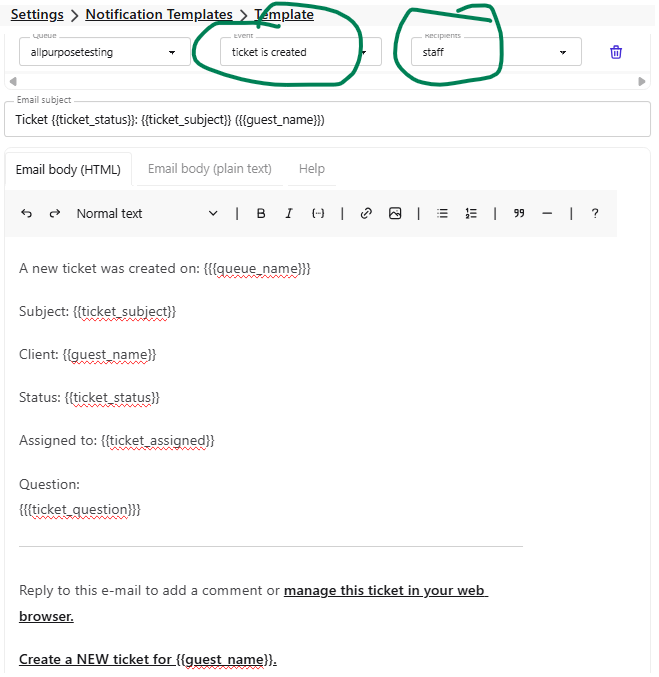
And here is an example of the email template you may want sent to staff to notify them when a ticket has been created. This template uses a lot of internal ticket variables for staff context, and it also includes the guest's question.
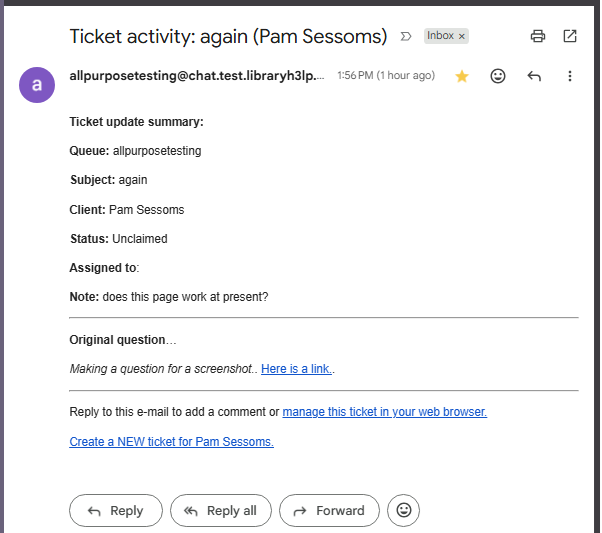
Here is a screenshot of a staff email that uses the above template:
Variables for email notification templates
Variables are enclosed in two or three curly brackets. Generally, {{two curly brackets}} are used for simple plain-text cases, but {{{three}}} are used when the content may include HTML formatting, such as for free-form ticket content like notes.
| Variable | Description |
|---|---|
| {{guest_email}} | Guest email address |
| {{guest_first_name}} | Guest first name, or email address if no name available |
| {{guest_name}} | Guest name, or email address if no name is available |
| {{last_email}} | Content of the most recent email from the guest |
| {{organization_name}} | Your organization's name as set in the Account area of your Subscription dashboard page |
| {{queue_name}} | Ticket queue name |
| {{ticket_assigned}} |
LibraryH3lp username of the assigned staff member |
| {{ticket_id}} |
The unique identifier for this ticket |
| {{ticket_note}} | Most recent ticket note |
| {{ticket_question}} | Guest's original question |
| {{ticket_status}} | Current ticket status (Unclaimed, Claimed, In Progress, Pending, Closed) |
| {{ticket_subject}} | Ticket subject |
| {{ticket_tags}} | Tags attached to ticket |
| {{ticket_url}} | Guest's ticket management URL |
Double Vs. Triple Curly Brackets
Most variables use double curly braces:
{{guest_name}}
Variables that may contain formatting, links, or other HTML content use triple curly braces:
{{{ticket_question}}}
As a rule of thumb, use the variable format shown in the table above. Variables that contain guest-submitted content or ticket notes should generally use triple curly braces so that formatting and links display correctly in notification emails.
For example:
{{ticket_note}} with two curly brackets will display as:
Page is <a href="https://www.mysite.edu/library/page.html">here at this link</>
{{{ticket_note}}} with three curly braces will display as:
Page is at here at this link
Advanced Template Wizardry
Interested in more complex template content? Check out our FAQ showing advanced examples.
FAQ URL:
More Help
Search By Topic
Stay Connected
